

How to Save a Location So You Can Actually Find It Again
October 2026 · DNS Progress Team
Everyone knows how to save a location. The screenshot, the address pasted into a note, the message to yourself. It takes five seconds and feels like a good decision at the time.
Then three months pass. You are in the same neighbourhood, you vaguely remember that there was a good place here, and you cannot find it. The information is technically saved — it is just unusable.
This guide is about the other half of the job: how to save a location so that future-you, standing on a street corner, can find it in ten seconds.
Why saved locations disappear
A location stored in a list loses everything that makes it findable:
| What you know | Saved in a note | Saved as a location |
|---|---|---|
| Where it is | A description | A pin with coordinates |
| What it looks like | “the green sign” | A photo |
| What to remember | Buried in text | A note next to the pin |
| How to group it | A tag you forgot | A group you filtered by |
A notes app forces you to translate a place into words, and words are a poor container for something spatial. A map stores the same facts in the shape they actually have.
A four-step method that keeps working
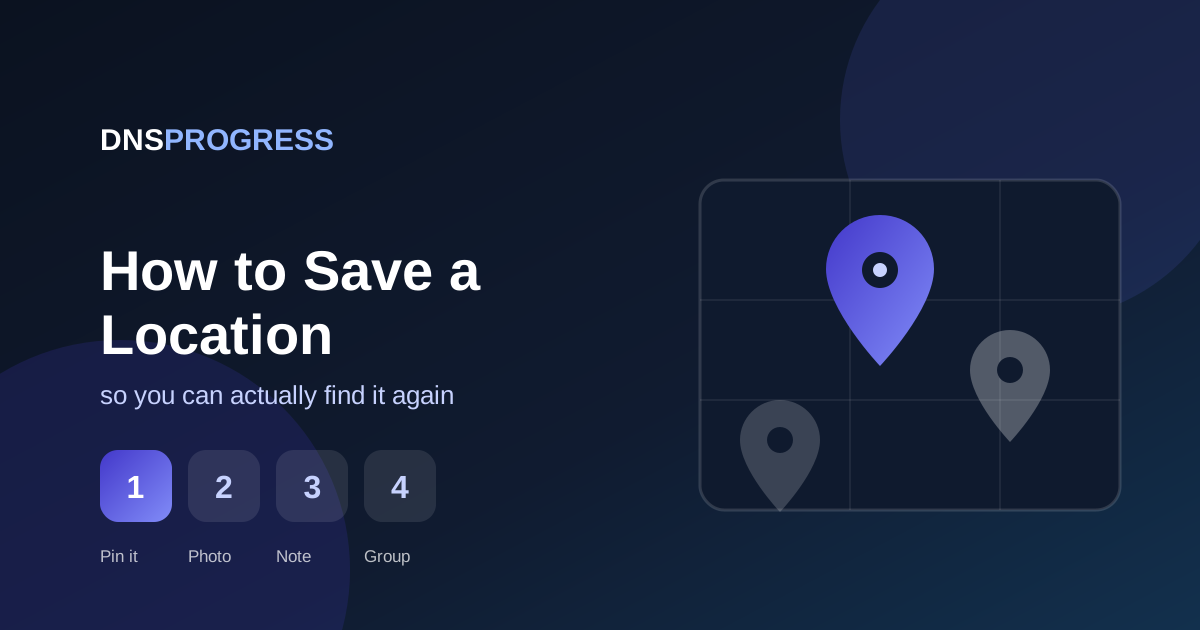
1. Save the location while you are standing there
The single biggest cause of a useless saved location is saving it later. Later, you are reconstructing it from memory, from a screenshot, from a half-typed address. The pin you drop standing in the doorway is always correct.
Save the location when you arrive, not when you get home. Even if the name is wrong and the note is empty, the coordinates are the part you cannot recover.
2. Add a photo and one note before you close it
Not five things — two:
- A photo. One picture of the entrance or the sign solves most “is this the right one?” questions.
- One practical note. “Parking is around the back.” “Closed on Mondays.” “Ask for the corner table.” Write down what you would tell a friend heading there now.
3. Group saved locations by how you will search
This is where most systems quietly collapse. People group places by category — Cafés, Restaurants, Shops — and then scroll through forty cafés forever.
Group by the question you will actually ask:
- By area — “I am in this neighbourhood, what is good here?”
- By job — “which suppliers do I still need to visit?”
- By trip or project — “what was on the list for this?”
One place can sit in several groups. The right grouping matches the moment you will be searching, not the one that looks tidiest.
4. Write notes for the person you will be in six months
Be specific and unedited. “Great for laptop work, plugs by the window, noisy after 6” beats “good cafe” every time. Future-you has none of your current context — that is the entire problem you are solving.
What to do about the backlog
You probably have locations scattered across your phone right now. Do not try to migrate everything — you will quit halfway.
Instead, migrate what you have used recently. Open your notes app, your screenshots, and your saved messages, and transfer only the places you have visited or wanted to visit in the last six months. That is typically fifteen to thirty entries, which is an afternoon at most.
Then delete the old notes. A system you half-trust is worse than no system, because you will keep checking both.
How to save a location in Lokatera
Lokatera is built around exactly this loop, so the four steps above happen in one place:
- Open the app and tap Add Place.
- Drop the pin on the exact spot.
- Add a name, a photo, and a note.
- Save it into a group.
Saved locations and groups are unlimited on every plan, including the free one, and photos are optimised before upload so your map stays fast. If you want to share a saved location with someone else, you can send a link, a QR code, or a six-character code — or invite them into a full workspace.
Lokatera is free to download on Android: get it on Google Play.
Common mistakes to avoid
- Saving the location later. The coordinates are the part you cannot recover. Save the location where it happens.
- Writing a description instead of dropping a pin. “Near the station” is not a location.
- Grouping by category. Categories grow; the questions you ask do not.
- Never reviewing. Once a month, open the map and delete duplicates. A map you trust is a map you use.
Start small today
Do not try to migrate every place at once — you will quit halfway. Instead, save the three locations you visit most often this week, put a photo on each, and sort them into one group. That is enough to prove the system works for you.
The test of a good save location habit is not how many places you have. It is whether you can find the right one in ten seconds while standing on the street.
Once saving a location takes four seconds and you trust that you will find it again, the habit takes care of itself.
Want to see the product behind this method? Explore Lokatera, or talk to us if you have a project in mind. If your team needs to share saved locations, read Save Locations for Your Team.
Frequently asked questions
How do I save a location on my phone?
Open a map app or a dedicated save location app, drop a pin on the exact spot, give it a name, and add a photo or a note. Saving the location while you are standing there is what makes it findable later.
Why do saved locations disappear from my notes app?
Because a notes app stores a location as text. You lose the coordinates, the photo, and any structure, so months later you cannot search or recognise the place. A map keeps the same facts in the shape they actually have.
What should I write in the note on a saved location?
Write what you would tell a friend heading there now: parking around the back, closed on Mondays, ask for the corner table. Be specific and unedited — future-you has none of your current context.
Should I group saved locations by category or by area?
Group by the question you will actually ask. Use area when you search by neighbourhood, job when you search by task, and trip or project when you search by list. One location can sit in several groups.
Is there a free app to save locations?
Yes. Lokatera is free on Android with unlimited saved locations and groups on every plan, including the free one. Limits apply only to workspaces, members, and photo storage.
Related articles
DNS Progress Launches Lokatera: the Save Location App for Android
Lokatera is now live on Google Play. Our save location app pins any place with photos, notes and groups, and shares saved locations with your team.
Read article →
How to Build a Mobile App from Scratch in 2026
A complete step-by-step guide to building a mobile app — from idea to app store launch. Covers planning, design, development, testing, and deployment.
Read article →
Save Locations for Your Team: One Shared Map for Field Teams
How to save locations for a whole team: one shared map with roles, groups, and access control that stays current — instead of screenshots and chat.
Read article →Need help building your product?
We build mobile apps, websites, and custom software for businesses. Tell us about your project and get honest advice — free.