

Save Locations for Your Team: One Shared Map for Field Teams
October 2026 · DNS Progress Team
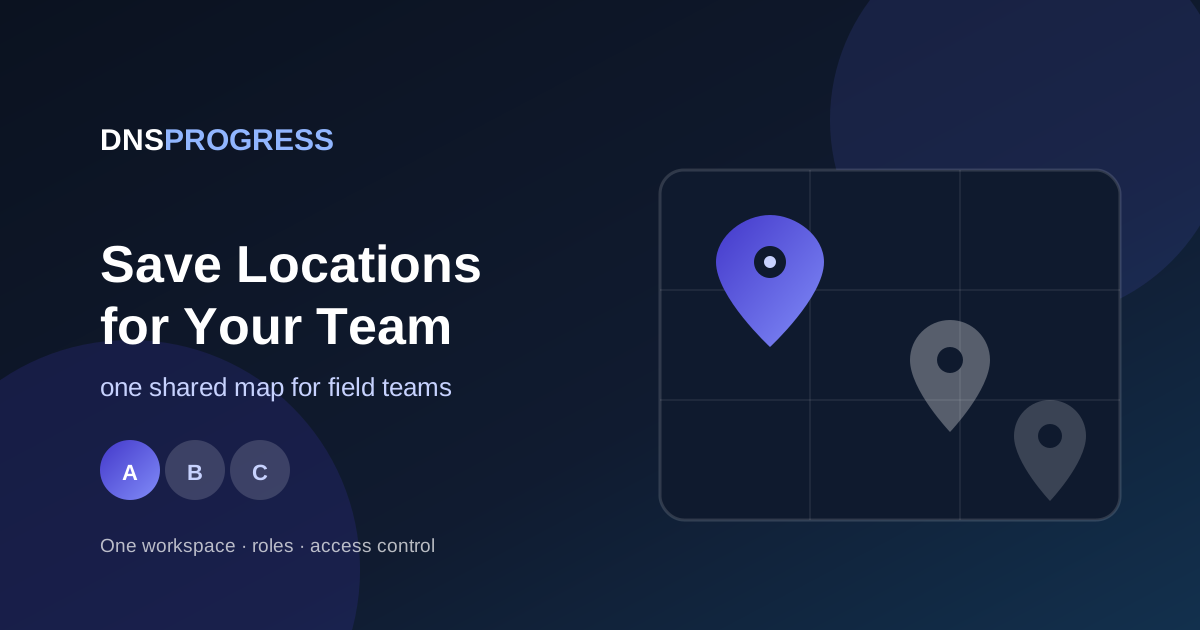
Saving a location for yourself is a personal habit. Saving locations for a team is an operations problem — and the tools that work for one person fall apart the moment three people need the same map.
Think about how most teams keep track of places today. A sales rep screenshots a customer’s location and sends it to a group chat. Someone adds an outlet to a shared spreadsheet. A field engineer keeps their own list. Three months later, no two people have the same picture, and the newest address exists only on one phone.
This is how to save locations so that the whole team shares one source of truth.
Why chat and spreadsheets fail at locations
Chat is built for conversation, not for places. A location shared there is buried by the next fifty messages, and there is no way to see all saved locations at once. A spreadsheet can list an address, but it cannot show you where that address is relative to the others, and it has no photo of the shopfront.
The moment your team needs to answer “where are our locations in this area?” or “which outlets has this rep visited?”, both tools run out.
What a shared map needs
For a team to save locations effectively, the map needs four things:
- One up-to-date view. Everyone sees the same saved locations, updated live — not a copy from three days ago.
- Groups with meaning. Zones, suppliers, or routes, colour-coded so a dense map stays readable.
- Roles. Not everyone should be able to delete or reshare everything.
- Control over who sees what. A team lead may need every saved location; a field member may only need their own area.
How Lokatera handles team locations
Lokatera calls this a workspace: a shared map of saved locations with its own members.
- Invite with a link, QR code, or code. Add people with a tap-to-join link, a scannable QR code, or a short six-character code you can read out loud. Or let them request to join and approve it yourself.
- Assign roles. Members join as owner, manager, or member, and owners and managers decide which groups each person can see.
- Keep a record. See who joined, who declined, and who was removed — in one list.
- Save with context. Every saved location can carry photos, notes, and a phone number, so a field visit is documented the moment it happens.
Because the workspace syncs, a location saved by one person in the field shows up for the whole team — no re-typing, no forwarding, no “can you send that again?”.
A short rollout plan that works
Moving a team onto a shared map fails when you migrate everything at once. Do it in four steps instead:
- Start with one workspace and one route. Pick the area or product line that changes most often.
- Define groups before you add people. Zones, suppliers, or routes — one rule the whole team understands.
- Save locations during the next visit, not after. Every rep adds the photo and the note while they are standing at the site.
- Review after two weeks. Delete duplicates, merge groups, and only then invite the rest of the team.
A map that is accurate for one route is worth more than a complete map nobody trusts.
Who this is for
- Sales and field teams saving customer locations, outlets, and sales points per area.
- Field operations tracking project sites and assets that crews must know about.
- Small businesses keeping suppliers, partners, and regular stops on one map instead of in five phones.
You can start personal and invite people later — nothing is rebuilt when the team grows. The Free plan includes one workspace and two members; paid plans raise the number of workspaces, members, and photo storage.
Get started
Lokatera is free to download on Android: get it on Google Play.
To see how the workspace and roles work, explore the product, or talk to us if you need a custom solution for your team. If you are new to saving locations, start with How to Save a Location.
Frequently asked questions
How do I share a saved location with my team?
Use a shared map app with workspaces. In Lokatera you invite people with a tap-to-join link, a QR code, or a six-character code, and they immediately see the same saved locations you do.
What is a workspace in Lokatera?
A workspace is a shared map of saved locations with its own members and roles. Owners and managers control the plan, the invites, and which groups of saved locations each member can see.
Can I limit which saved locations a member can see?
Yes. Owners and managers assign roles and decide, group by group, what each member is allowed to open — so a field member can see their own area without seeing the whole map.
Why not just share locations in a group chat?
Chat buries a location under the next fifty messages and gives you no way to see all saved locations at once. A shared map keeps one up-to-date view, and each saved location carries its own photos and notes.
How many people can join a workspace?
The Free plan includes one workspace with two members. Paid plans raise this to 5, 15, and 50 members per workspace, along with more workspaces and more photo storage.
Related articles
DNS Progress Launches Lokatera: the Save Location App for Android
Lokatera is now live on Google Play. Our save location app pins any place with photos, notes and groups, and shares saved locations with your team.
Read article →
How to Save a Location So You Can Actually Find It Again
Learn how to save a location with a pin, a photo and a note — and why a map beats a notes app for saving locations you can find again months later.
Read article →
Mobile App Development Cost in 2026: A Complete Breakdown
How much does it cost to build a mobile app in 2026? A detailed breakdown by complexity, platform, team type, and hidden costs most people forget.
Read article →Need help building your product?
We build mobile apps, websites, and custom software for businesses. Tell us about your project and get honest advice — free.